Stream Deck Plugin
The RaceLab Stream Deck plugin lets you control overlays, VR, overlay sets, and more directly from your Elgato Stream Deck. Buttons update in real time to reflect the current state of RaceLab.
Requirements
- Elgato Stream Deck software version 6.9 or later
- RaceLab v7.2.0+ running on the same machine
The plugin communicates with RaceLab over a local connection. RaceLab must be running for the buttons to work.
Installation
- Open the Stream Deck app
- Go to the Elgato Marketplace (the store icon)
- Search for RaceLab
- Click Install
Once installed, all RaceLab actions appear in the action list on the right side of the Stream Deck app.
Actions
Toggle Overlay

Toggle any individual RaceLab overlay on or off. The button icon updates in real time to show whether the overlay is currently open or closed.
- Active
- Inactive




























Launch RaceLab
Launch or close the RaceLab application directly from your Stream Deck.
- Short press - Launches RaceLab
- Long press (hold for 0.5 seconds) - Closes RaceLab
The button icon shows whether RaceLab is currently running and connected.
Show / Hide Overlays
Toggle the visibility of all RaceLab overlays at once. When overlays are visible, the button shows a "hide" icon. When hidden, it shows a "show" icon.
Lock / Unlock Overlays

Lock or unlock all overlays to prevent accidental repositioning. When overlays are locked, they cannot be moved or resized.
Start / Stop Layouts

Enter or exit the RaceLab layout editor. When layout mode is active, overlay drag handles appear so you can reposition your overlays.
Start / Stop VR

Toggle VR mode in RaceLab on or off. The button icon reflects the current VR state in real time.
Recenter VR
Recenter your VR view with a single press.
Activate Overlay Set

Jump directly to a specific overlay set. RaceLab supports up to 10 overlay sets labeled A through J. The button highlights in your chosen color when that set is currently active.
Cycle Overlay Set
Step forward or backward through your overlay sets. The button flashes briefly when pressed to give visual feedback.
Race Events

Navigate through race events and review marks during replay. Each button maps to one navigation command.
| Icon | Command | Description |
|---|---|---|
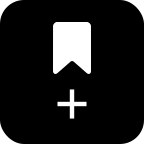 | Review Mark | Place a review mark at the current moment |
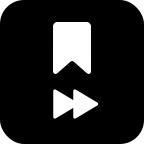 | Next Review Mark | Jump to the next review mark |
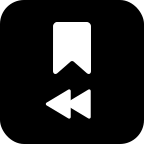 | Previous Review Mark | Jump to the previous review mark |
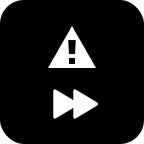 | Next Incident | Jump to the next incident |
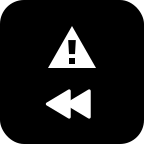 | Previous Incident | Jump to the previous incident |
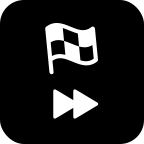 | Next Event | Jump to the next event |
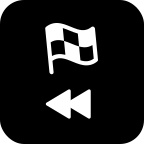 | Previous Event | Jump to the previous event |
Cycle Delta Bar
Cycle through the Delta Bar's comparison modes. The button icon updates to show which mode is currently active.
| Icon | Mode | Description |
|---|---|---|
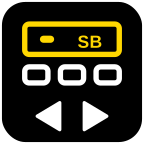 | Session Best | Compare against your best lap this session |
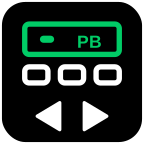 | Personal Best | Compare against your all-time personal best |
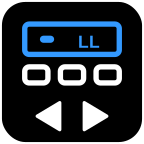 | Last Lap | Compare against your previous lap |
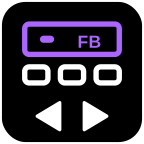 | Friend Best | Compare against your friend's best lap |
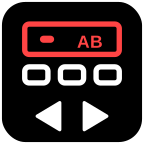 | All Best | Compare against the overall best lap |
Reset G-Force

Reset the G-Force Meter overlay's recorded peak values. This is a one-shot action with no state tracking.
Themes
Most actions support multiple icon themes that you can select in the button's settings panel. To change a theme, click on a button in the Stream Deck app and look for the Theme dropdown in the settings panel.
Flat

The default theme. Clean, solid icons with a colored background when active and black when inactive. Presets available + color picker (red by default).
Glow

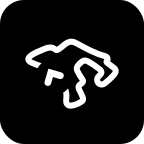
Neon-style icons with a soft colored glow on a dark background. Presets available + color picker (red by default).
Plain
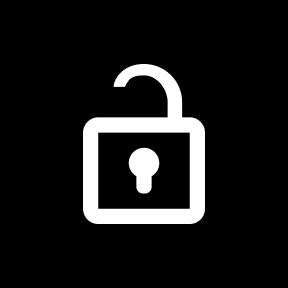
Minimal white-on-black icons. No color, no effects.
Glass
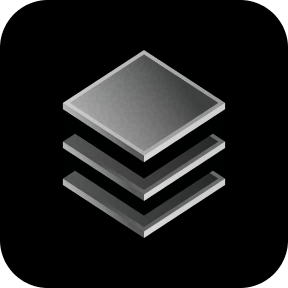
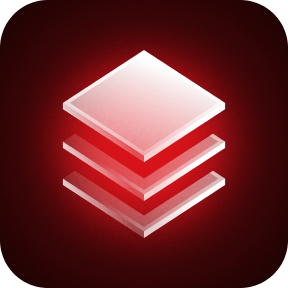
Translucent, frosted-glass style icons. Available in 13 colors.


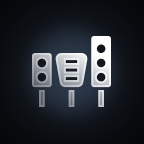

Original
Exclusive to the Launch RaceLab button. Uses the classic RaceLab app icon.
Troubleshooting
Buttons show as disconnected or don't respond
Make sure RaceLab is running. The plugin connects to RaceLab over a local connection on your machine. If RaceLab isn't running, buttons won't be able to send commands or receive state updates.
Button icons don't update in real time
Check that RaceLab is running and that you're on the latest version. The real-time sync relies on a WebSocket connection that starts automatically when RaceLab-connected buttons are visible on your active Stream Deck profile.